PDF Export vs Slide Capture: Text, Links & Quality
Compare original PDF exports with slide-image captures. See what happens to selectable text, links, page quality and slide counts before saving a deck.
By DeckExport · Updated
Start with the original PDF when it is available
A PDF can contain text, vector shapes, links and images. Downloading an existing PDF or requesting a provider’s native PDF export can preserve those elements. Capturing slide images creates pages that look like the slides but contain pictures of their content. The two results can look similar at first and behave differently when you search, copy text or zoom.
DeckExport uses native exports for eligible Google Docs, Slides and Sheets links. It retrieves existing PDFs from supported file links. For public DocSend viewers, it uses the original export when offered, with image capture as a fallback. Speaker Deck conversion assembles the public slide images.
| Property | Original PDF or native export | Viewer slide capture |
|---|---|---|
| Selectable text | Preserved when present in the source PDF | Text remains part of each image; no OCR is added |
| Links | Available when included by the original export | Visible link text is pictured, without adding a clickable link |
| Zoom | Text and vector shapes can remain sharp | Detail is limited by the source image resolution |
| Animation and video | Google’s static export does not play presentation effects | Static page images only |
| Page selection | Copies requested PDF pages into a new PDF | Copies requested image-based pages into a new PDF |
| Full download | Existing PDF bytes are unchanged when no page selection is entered | A new PDF is assembled from the complete captured page list |
Try it yourself: two PDFs of the same page
We made a one-page illustration containing a sentence, vector shapes and one clickable link. Then we rendered that page to a 960 × 640 image and placed the image in a second PDF. These are original DeckExport teaching samples, not Google exports or provider quality benchmarks.
- Download the text-and-links PDF: one page with selectable text and one link annotation.
- Download the image-only PDF: one page containing a picture of the first PDF, without a text layer or link annotations.
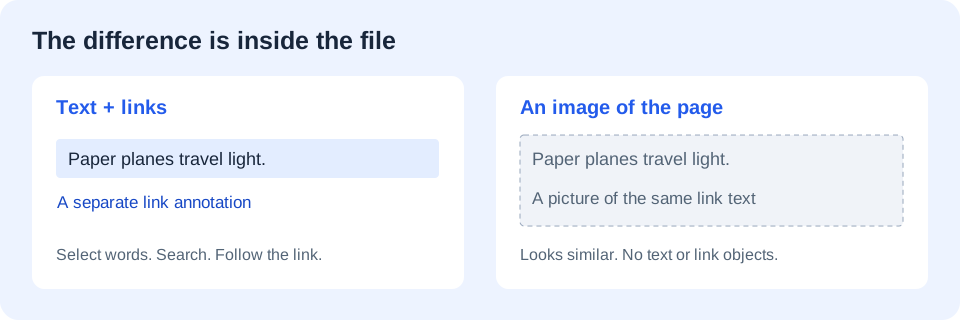
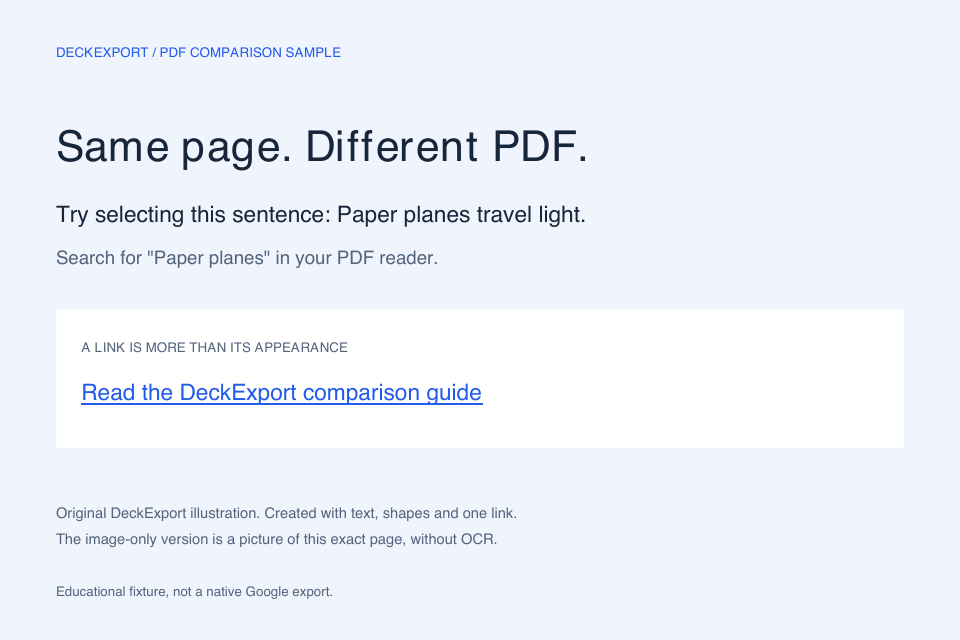
- Open both files in the same PDF reader and search for Paper planes. The first file contains that text; the image-only file has no page text to extract.
- Try selecting and copying the sentence. If your reader recognizes text in the image-only sample, it is adding its own OCR or image text recognition; that text is not embedded in our sample.
- Click “Read the DeckExport comparison guide.” The first PDF includes the link destination. The second only pictures the label.
- Zoom in on the letters. The first file draws text from its font; the second enlarges a fixed-resolution image. This illustrates the difference, but does not predict the resolution of every captured presentation.
Want to check an existing file? Open it in Extract PDF Pages, save a page and repeat the checks. Page selection copies the page content; it does not convert image text into searchable text. For a Google source, the PDF link generator lets you request Google’s export before considering a screenshot.
How to recognize the result
The preview labels captured output as Viewer capture. Check that label before relying on text search. A source PDF can itself be scanned, so an Original document label does not promise selectable text. Open the downloaded file and try selecting a sentence or searching for a distinctive word.
Our public conversion checks on September 12, 2026 parsed a 21-page DocSend viewer capture and a 40-page Speaker Deck capture, alongside seven native file/export paths. The captures matched their expected page counts. These are checks of particular fixtures, not a guarantee that every sharing link will remain available.
The public Beautiful Slides for Beginners presentation was the 40-page Speaker Deck fixture. Its captured first and last pages were 1920 × 1080. DeckExport checks the page list and rejects missing pages instead of returning a partial success.
What to check before saving an excerpt
- Confirm the preview contains the beginning and end of the document you expected.
- Use the preview’s page positions, which may differ from page numbers printed on the slides.
- Enter a selection such as
5, 1-3to place the fifth page first, followed by pages one through three. Duplicate page numbers are removed. - Check the downloaded excerpt. Selecting pages creates a new PDF; it does not preserve an original digital signature as a signature of that new file.
When another method is a better fit
Use the source application when you need speaker notes, a particular worksheet layout or an editable file. Use an OCR tool when a captured or scanned page needs searchable text; DeckExport does not add OCR. For an ordinary website, use browser printing or an HTML-to-PDF service. A document-link converter does not reproduce arbitrary web pages.
A missing native download control also needs context. DocSend’s own download and print controls depend on the sender’s settings. DeckExport’s supported public-viewer capture is a separate method; it cannot complete an email, password, identity or NDA gate. See the DocSend troubleshooting table before retrying.
Related: Speaker Deck to PDF · Direct file links · Compare tools